courtz-website
Game Generation
Game Generation is at the heart of CourtZ.
The first round of games is generated automatically when a session starts. After each round of play, select to generate the next round.
Generating the First Games
When you select Start Session, CourtZ automatically generates the first round of games using the current Session Profile settings and the players attending today’s session.
Players are allocated to courts and any remaining players are placed in the Waiting Room.
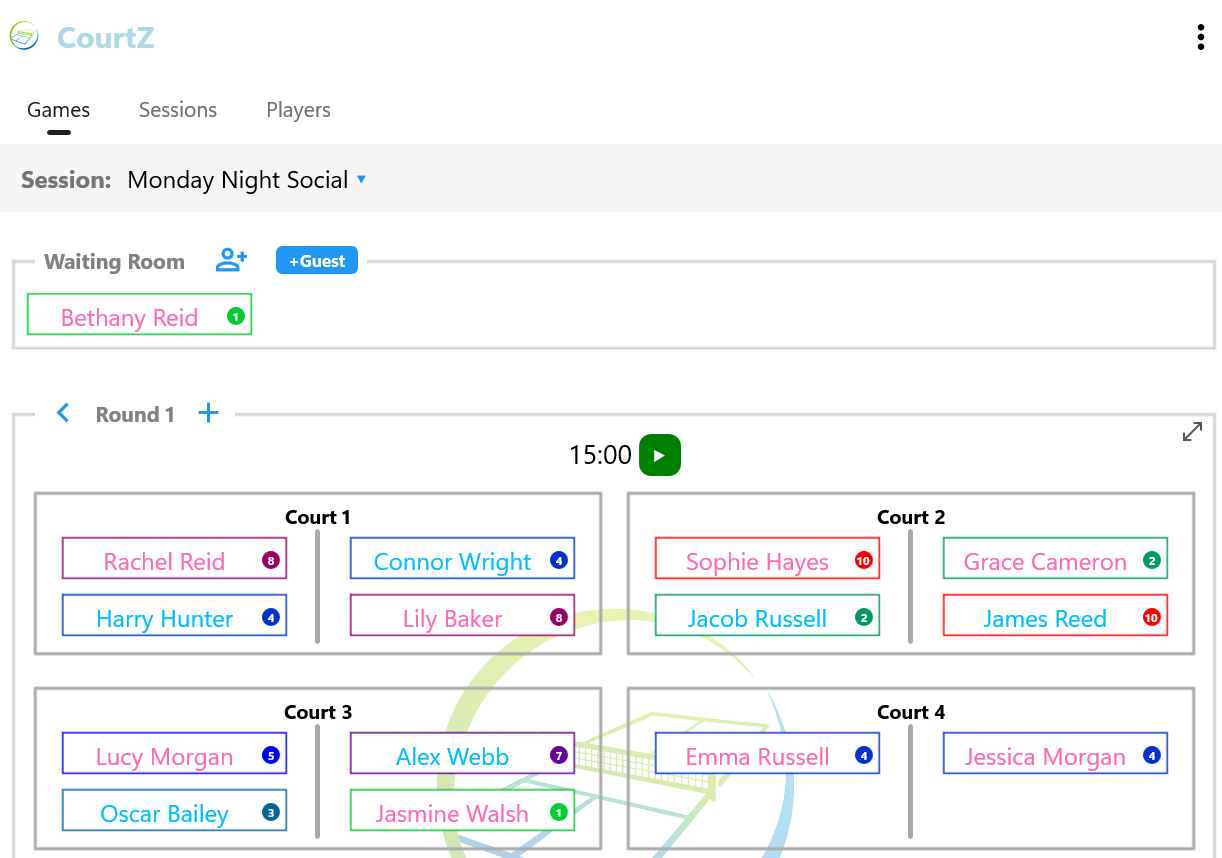
The Games page showing players on court, the Waiting Room and the controls used to manage the session.
Players can now move to their allocated courts and begin play.
If you are using the optional Countdown Timer, start it before play begins. An alarm sounds automatically when the selected game duration has elapsed.
Generating the Next Round
When the current round has finished, select the button to generate the next round.
CourtZ automatically:
- selects the players for the next round
- allocates players to courts
- updates the Waiting Room
- applies any player availability changes
The court and player allocation is calculated automatically using the current session settings. Players cannot be assigned to courts manually.
Players can then move to their allocated courts and begin the next round.
Repeat this process until the session has finished.
Viewing Previous Rounds
CourtZ keeps a complete history of every round generated during the current session.
Use the navigation controls above the Games panel to move backwards and forwards through previous rounds.
- displays the previous round.
- moves forwards through existing rounds.
- generates the next round or regenerates the current round after editing the previous round.
Historical rounds show the original court allocations together with the Waiting Room for that round. Historical rounds are read-only.
Editing the Previous Round
Only the immediately previous round can be edited.
This allows you to correct changes that occurred during the current round, such as:
- a player leaving the session
- a player resting after the current game
- a late-arriving player joining the session
- adding a guest player
After making changes, the button regenerates the current round using the updated player list.
Earlier rounds are read-only and cannot be modified.
Regenerating the Current Round
After editing the previous round, the button changes from generating the next round to regenerating the current round.
Regeneration replaces the current round using the updated player list.
A warning is displayed before the previous round is edited to remind you that any games already in progress should be allowed to finish before regenerating.
How Game Generation Works
Each time a new round is generated, CourtZ evaluates the available players and attempts to produce the best possible set of games using the current session settings.
Rather than applying a single rule, CourtZ balances a number of factors, including:
- player Skill Levels
- previous partnerships
- previous opponents
- mixed games preferences
- player waiting time
- Expected Games
The importance of each factor depends on the current session settings. For example, Balanced Team Skills attempts to produce evenly matched teams by keeping the total Skill Levels of each side as close as possible, while Competitive Team Skills attempts to group players of similar ability together.
Expected Games
Players can optionally specify the number of games they expect to play when attendance is prepared.
When a player has an Expected Games target, CourtZ gives them additional priority during game generation to help them reach that target.
Once a player reaches their expected number of games, you can choose to remove them before generating the next round.
No two sessions are exactly alike, so the generated games may vary as player attendance changes throughout the session.
The aim is to produce enjoyable, varied and fair games while ensuring that everyone receives regular opportunities to play.
The Waiting Room
The Waiting Room is managed automatically throughout the session.
As each new round is generated, players move between the courts and the Waiting Room.
If there are more players than available court spaces, some players remain in the Waiting Room until they can be included in a later round.
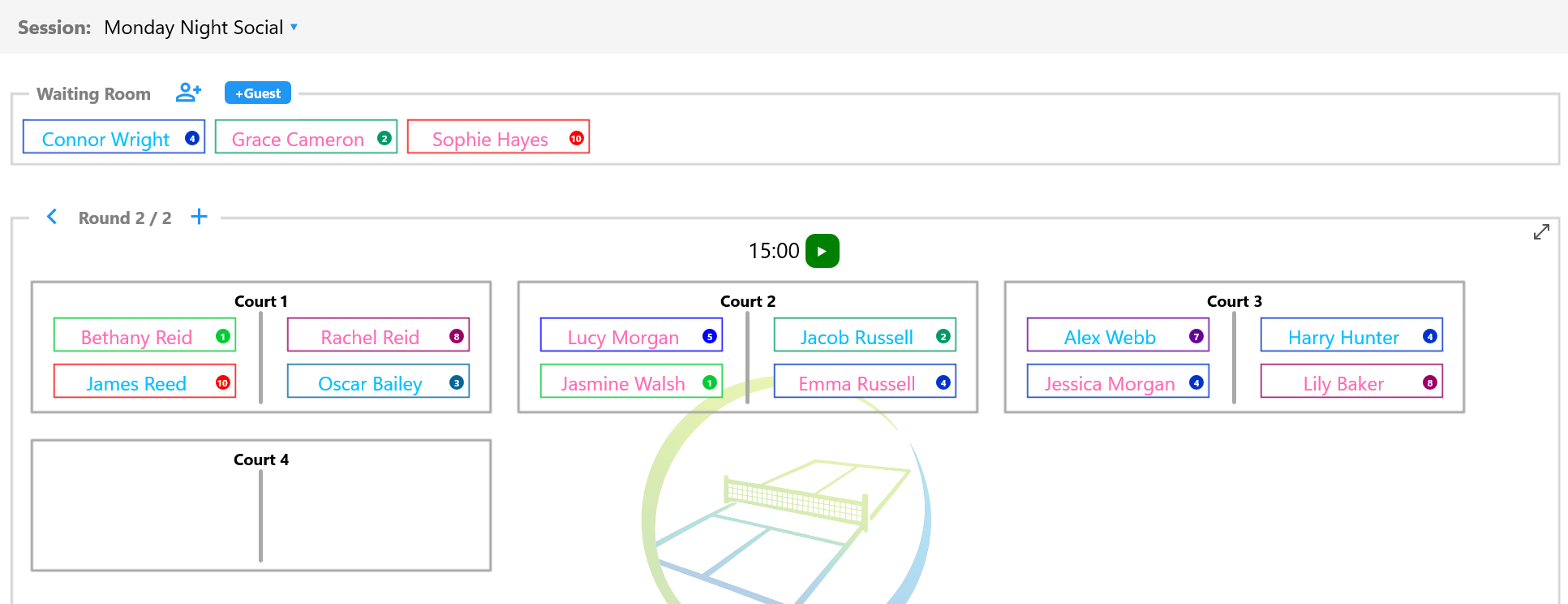
Players waiting for their next game remain in the Waiting Room until CourtZ allocates them to an available court.
Players Joining or Leaving
While viewing the latest or previous round, players can be added to or removed from the session.
For example, you can:
- add a late-arriving player to the Waiting Room
- add a guest player
- remove a player who leaves the session
Any changes are automatically taken into account the next time the button is selected.
Removing a Player from the Waiting Room
To help prevent accidental removal, players are removed from the Waiting Room using a two-step process.
- Tap and hold the player’s name.
- A red bin icon appears within the player label.
- Tap the red bin icon within 3 seconds to remove the player from the current session.

Tap and hold a player in the Waiting Room to reveal the bin button. Select it within 3 seconds to remove the player from the current session.
If the bin icon is not selected within 3 seconds, it disappears and the player remains in the session.
Removing a player from the Waiting Room affects only the current session. The player remains in the master player list and in any Session Profiles to which they belong.
Player Availability
Before generating the next round, you can indicate whether players wish to continue playing.
Players currently on court
Tap a player to cycle through three availability states:
- Normal – the player is available for selection in the next round.
- Rest – the player completes the current game, then sits out the next round.
- Exit – the player completes the current game, then leaves the session and is not included in subsequent rounds.
Tap the player again to return to the normal playing state.
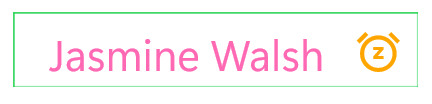
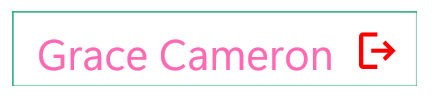
Players on court can be marked to rest after their current game or to leave the session.
Players in the Waiting Room
Players in the Waiting Room can also be tapped to control their availability.
- Normal – the player is available for selection in the next round.
- Rest – the player skips the next round and remains in the Waiting Room.
Each tap alternates between these two states, allowing players to take one or more consecutive rounds off before returning to play.
Saving the Current Session
If you would like to reuse the current session in the future, select Save Session from the Options menu.
This saves the current players and game settings as a Session Profile, allowing the same setup to be used again in future sessions.
What’s Next?
The current session settings can be changed at any time using Session Settings from the Options menu. These changes affect future games generated during the current session only and do not modify the original Session Profile.
Continue to Games Display to learn how to present court allocations to players, or Countdown Timer to learn how to use the optional timer.
| ← Running a Session | 🏠 Help Home | Games Display → |