courtz-website
Session Profiles
Session Profiles define your regular playing sessions, allowing CourtZ to remember the players and game settings used each time the session is run.
A Session Profile stores:
- the regular players for the session
- the most recently recorded attendance
- the game settings used to generate games
It does not store copies of player information. Instead, it refers to players in the master player list.
This means that if you update a player’s name or Skill Level on the Players page, every Session Profile using that player automatically uses the updated information.

The Session Profiles page showing the available Session Profiles and the number of players assigned to each profile.
Creating a Session Profile
To create a Session Profile:
- Open the Session Profiles page.
- Select Add.
- Enter a name for the Session Profile.
- Select the regular players.
- Choose the game settings.
- Save the Session Profile.
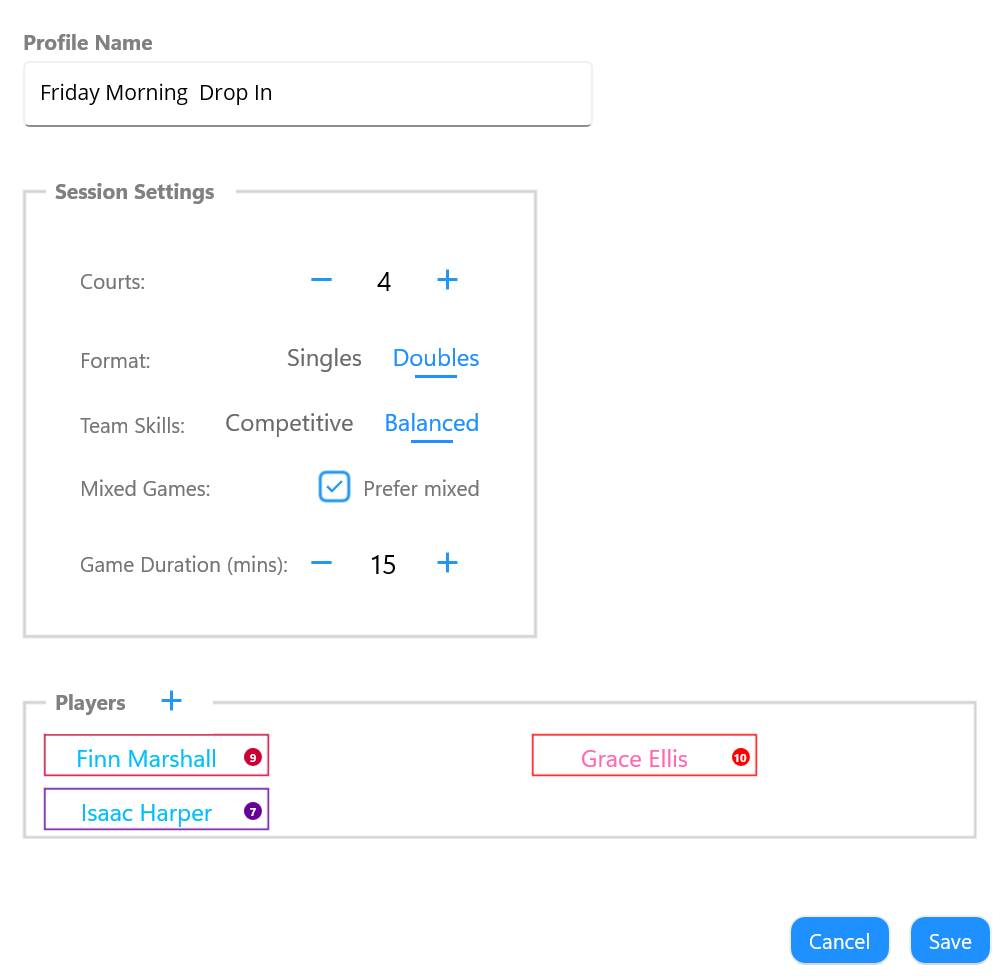
The Session Profile editor is used to define the regular players and default game settings for a session.
The Session Profile is now available whenever you start a new session.
Deleting a Session Profile
To help prevent accidental deletion, Session Profiles are deleted using a two-step process.
To delete a Session Profile:
- Tap and hold the Session Profile.
- A red bin button appears beside the Session Profile name.
- Tap the red bin button within 3 seconds.

Tap and hold a Session Profile to reveal the red bin button. Select it within 3 seconds to delete the Session Profile.
If the red bin button is not selected within 3 seconds, it disappears and the Session Profile is not deleted.
Deleting a Session Profile removes only the profile. Players remain in the master player list.
Session Settings
Each Session Profile stores the default settings used whenever a new session is started.
These include:
- Number of courts – the number of courts available for play.
- Format – whether games are generated as Singles or Doubles.
- Team Skills – determines how CourtZ balances player abilities when generating games.
- Balanced attempts to make both teams equally matched by keeping the total Skill Levels of each team as close as possible.
- Competitive attempts to group players of similar Skill Levels together, creating games where all players are of a comparable standard.
- Mixed Games – whether CourtZ should prefer mixed-gender games when suitable players are available.
- Game Duration – the target length of each game before the next round is generated.
These settings are used automatically whenever the Session Profile is started.
If required, they can be temporarily changed during a session using Options. Temporary changes affect only the current session and do not modify the Session Profile.
Managing Players
Session Profiles contain references to players in the master player list.
You can:
- add players to the Session Profile
- remove players from the Session Profile
Player details such as names and Skill Levels are managed on the Players page.
Removing Players from a Session Profile
To help prevent accidental removal, players are removed from a Session Profile using a two-step process.
To remove a player:
- Tap and hold the player’s name.
- A red bin button appears beside the player’s name.
- Tap the red bin button within 3 seconds.

Tap and hold a player’s name to reveal the red bin button. Select it within 3 seconds to remove the player from the Session Profile.
If the red bin button is not selected within 3 seconds, it disappears and the player remains in the Session Profile.
Any changes made to a player’s details are automatically reflected in every Session Profile that includes that player.
Preparing Attendance
Attendance can be recorded before arriving at the venue.
Each Session Profile displays an Attendance indicator showing the number of players currently marked as attending and the total number of players in the profile (for example, 15/20).
Select the Attendance button to open the Attendance dialog. Select the players expected to attend, then save the attendance.
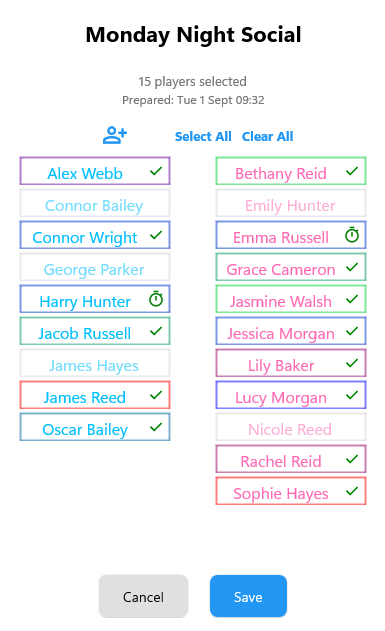
The Attendance dialog is used to select the players expected to attend the session. Greyed-out players are currently marked as absent.
Use Select All or Clear All to quickly mark every player as attending or absent before making individual changes.
Expected Games
You can optionally specify how many games an attending player expects to play.
Tap a player’s status icon to set or adjust their Expected Games.
- Tick – the player is attending.
- Stopwatch – the player has an Expected Games value set.
Expected Games can be set to 1, 2, 3, 4 or Any (expected number of games is unspecified).
Players with an Expected Games target are prioritised during round generation to help them reach their expected number of games. When a player reaches their target, CourtZ provides the option to remove them before the next round is generated.
The attendance list can be updated whenever players confirm or cancel before the session begins.
Starting a Session
To start a session:
- Open the Games page.
- Select the required Session Profile.
- Review today’s attendance and make any final changes if required.
- Select Start Session.
CourtZ automatically generates the first round of games using the Session Profile settings and the players marked as attending.
Updating a Session Profile
Session Profiles can be edited whenever your regular session changes.
For example, you might:
- add new regular players
- remove players who no longer attend
- change the number of courts
- adjust the game duration
- change the preferred game mode
Changes are saved immediately and are used the next time the Session Profile is started.
Additional Options
Select Options (⋮) to access additional actions for the Session Profiles page.
Delete All Session Profiles permanently removes every Session Profile.
This does not affect the master player list.
Existing player records remain available to create new Session Profiles.
Tips
Tip: Create separate Session Profiles for different days, venues or groups of players. Each profile remembers its own players and default game settings.
Tip: Recording attendance before arriving at the venue allows games to be generated immediately when the session starts.
Related Topics
- Players
- Running a Session
- Game Generation
- Options
| ← Players | 🏠 Help Home | Running a Session → |