courtz-website
Options
The Options menu provides access to session settings, session management and application information.
Select Options (⋮) from the Games page to open the Options menu.
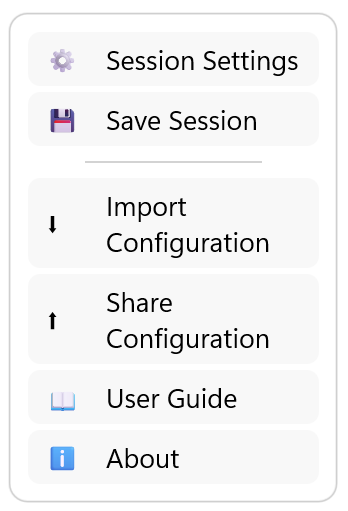
The Options menu provides access to session settings, saving sessions, configuration management and application information.
Session Settings
Select Session Settings to temporarily change the game generation settings for the current session.
Session Profiles provide the default settings for a session. Once play has started, you can override those settings using Session Settings.
Depending on your session, you can change settings such as:
- number of courts
- game duration
- Singles or Doubles
- Team Skills
- mixed games preferences
The updated settings are used in the next round when the button is selected.
These changes affect only the current session. They do not modify the original Session Profile.
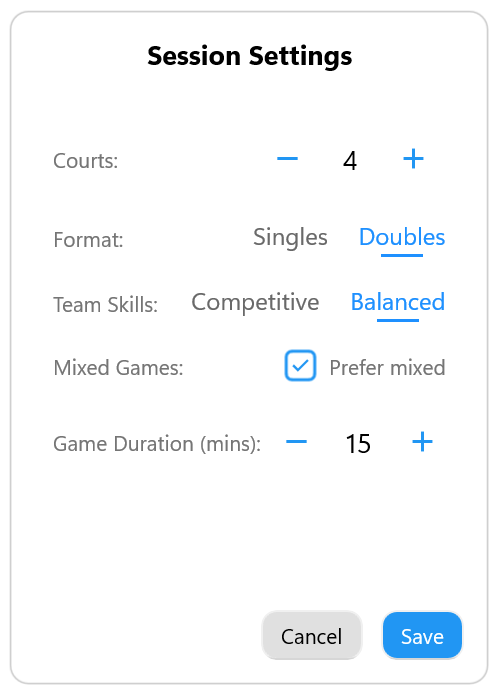
Session Settings allows the game generation settings for the current session to be adjusted.
Save Session
Select Save Session to save the current session as a Session Profile.
You can:
- create a new Session Profile
- overwrite an existing Session Profile
This is useful if you started a session without using a Session Profile, or if you have adjusted the current session and would like to use the same setup again.
Import Configuration
Select Import Configuration to import a previously exported CourtZ configuration.
A configuration can contain:
- players
- Session Profiles
- application settings
When importing a configuration, you can choose how the imported data is applied:
- Replace – replaces the current configuration with the imported configuration.
- Merge – combines the imported configuration with the existing data.
- Selected Profiles – imports only selected Session Profiles and the players required by those profiles.
When configurations are merged, imported data is combined with the existing CourtZ configuration.
CourtZ validates imported files and reports an error if the file is not a valid CourtZ configuration.
Export or Share Configuration
CourtZ allows configuration data to be transferred to another device or saved as a backup.
On desktop devices, select Export Configuration to save the configuration to a file.
On mobile devices, select Share Configuration to share the configuration using the device’s standard sharing options.
You can export or share:
- the complete configuration
- selected Session Profiles
When selected Session Profiles are exported or shared, the players required by those profiles are included automatically.
Configuration data can be used to:
- create a backup
- transfer CourtZ data to another device
- share a club configuration with another organiser
Configuration files use a standard JSON format, making them easier to transfer between supported platforms.
Online Help
Select Online Help from the More menu to open the CourtZ Help website.
The online help includes:
- getting started guides
- explanations of CourtZ features
- step-by-step instructions
- troubleshooting information
- the latest documentation for new releases
An internet connection is required to access the online help.
About
Select About to view information about your copy of CourtZ.
The About dialog displays:
- CourtZ version
- club name
- email address
- licence status
- licence type
- issue date (licensed copies)
- expiry date (where applicable)
If you are using the trial version, you can also activate your purchased licence from the About dialog.
The About dialog also provides access to the CourtZ website.
Tips
Tip: Temporary changes made using Session Settings affect only the current session. To make permanent changes, edit the Session Profile instead.
Tip: Regularly exporting your configuration provides a convenient backup of your players, Session Profiles and application settings.
What’s Next?
Continue to Configuration to learn about the application settings.
| ← Countdown Timer | 🏠 Help Home | Configuration → |